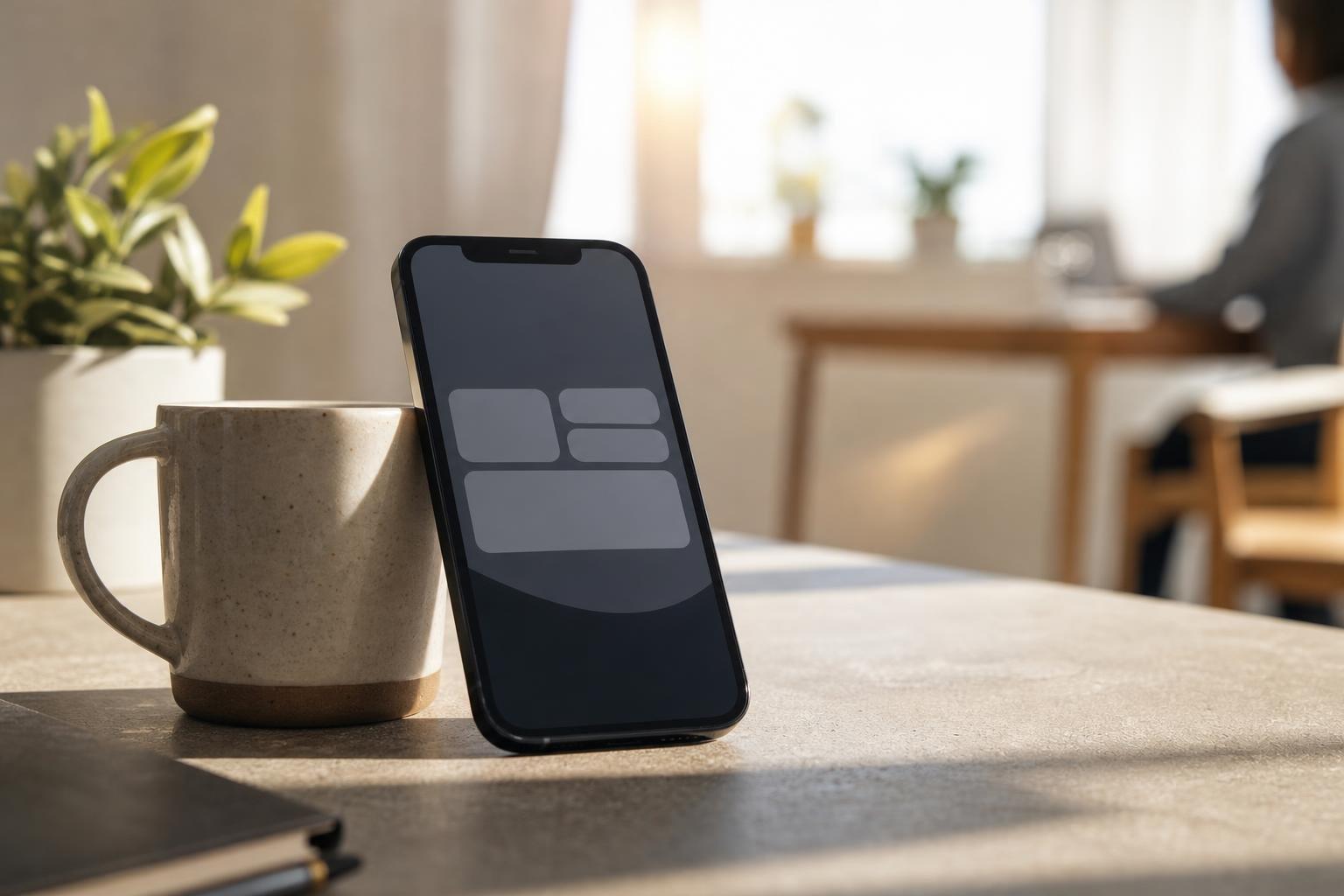
The best habit tracker with lock screen widget turns routine accountability into a seamless, glanceable action. When you place your key habits on your display, you log progress without opening an app or falling down digital rabbit holes. By removing the friction of unlocking your phone, you protect focus and make daily follow-through second nature.
Why Lock Screen Widgets Change Habit Tracking
Traditional habit tracking requires multiple manual steps: unlocking your device, finding an app, waiting for it to load, and tapping to log an action. Each step introduces friction and exposes you to social feeds, notification banners, and other distractions. A dedicated widget on your lock screen simplifies this entire interaction into a single glance or tap.
Friction is the primary reason daily routines fall apart. When tracking demands active navigation, logging gets delayed and forgotten. Apple Support documentation states that Lock Screen widgets were introduced in iOS 16, bringing glanceable app data right below the clock. With that shift, keeping track of your commitments became effortless.
A product analysis published by EasyHabits reported that completing a habit via an interactive iOS widget saves an estimated 10 to 15 seconds per log compared to unlocking the device and navigating an app. Saving a dozen seconds may seem small, but eliminating repeated daily resistance keeps your discipline intact.
How iOS Interactive Widgets Elevate Daily Consistency
Static widgets only display data, leaving you to unlock your iPhone whenever you need to update a status. That changed when Apple introduced interactive widgets with iOS 17, enabling users to mark items complete or execute actions directly from their screens without launching the host app.
This update turned lock screen surfaces into functional control centers. You can log water intake, complete a reading target, or note an exercise session with a single touch, then put the phone down immediately. Combined with homescreen widgets that allow users to check off tasks and log habits directly from their primary views, your device works for you instead of pulling your attention away.
| Widget Capability | Static Widgets (iOS 16) | Interactive Widgets (iOS 17+) |
|---|---|---|
| Data Visibility | Glanceable numbers and icons | Glanceable numbers and icons |
| Completion Method | Opens the parent application | One-tap completion on-screen |
| App Navigation Required | Yes | No |
| Focus Protection | Low (exposes you to phone apps) | High (log and put the phone down) |
| Time Saved Per Log | Baseline | 10 to 15 seconds saved |
Leading iPhone Habit Trackers Compared
Different trackers approach lock screen displays with distinct philosophies. Some prioritize minimal visual icons, others deliver rich charts, and some connect habits with focused work sessions. Understanding these design differences helps you select the right tool for your specific routine.
Popular options include dedicated habit tools and complete routine platforms:
- Tupp: Combines habit tracking, a focus timer, daily checklists, and clean day metrics with interactive displays. Our homescreen widgets and lock screen elements let you complete tasks and initiate focus sessions instantly.
- Streaks: A minimalist option designed around recurring circles. Streaks allows users to monitor up to 24 separate habits across Apple devices and automatically marks tasks complete by syncing with over 80 Apple Health metrics.
- HabitKit: Focuses on tile-based grid visualizations. HabitKit's official documentation notes that its interactive widgets allow users to check off daily habits directly from their phone screens, though widget access requires a paid tier.
| Feature | Tupp | Streaks | HabitKit |
|---|---|---|---|
| Lock Screen Display | Circular and Rectangular | Circular and Rectangular | Grid and Progress |
| Focus Timer Integration | Yes (Live Activities & Dynamic Island) | Yes (Live Activity timers) | No |
| Health App Automated Sync | Manual logging | Over 80 Health metrics | No |
| Cross-Platform Sync | iOS, Watch, Web (Android soon) | iOS, Watch, Mac | iOS, Android |
| Multi-List Task Tracking | Habits and daily checklists | Habits only | Habits only |
Designing an Effective Lock Screen Habit Tray
Screen real estate on your lock screen is intentionally limited. According to Apple Support guidelines, users can place up to four small circular widgets or two rectangular widgets in the dedicated tray below the iPhone lock screen clock. Because space is tight, every slot must count.
Prioritize High-Frequency Actions
Reserve circular slots for binary habits that occur multiple times a day or require immediate logging, such as hydration, taking vitamins, or short mindfulness pauses. Use rectangular widgets when you need contextual text, such as the title of your next scheduled routine or a running completion streak.
Keep Visual Distractions to a Minimum
Choose clean indicators over cluttered graphics. When you explore our guide to lock screen widgets for productivity and task checking, you will see that clear visual feedback prevents cognitive overload. The goal is simple: confirm what is done, see what remains, and protect focus.
Advanced Routine Workflows with Apple Focus Modes
Your morning commitments rarely match your evening priorities. iOS lets you adapt your screen dynamically throughout the day. According to Cultured Code, iOS allows users to configure multiple custom Lock Screens paired with Apple Focus modes, enabling different habit widgets to surface depending on the time of day or active routine.
By building dedicated lock screens for distinct Focus profiles, you keep your displays aligned with your current context:
- Morning Routine Focus: Surface lock screen widgets for hydration, stretching, and daily planning so you start the day with clear wins.
- Deep Work Focus: Switch the tray to a rectangular focus timer widget or a single priority habit. You can review how a live activities focus timer keeps your active sprint visible without unlocking your phone.
- Evening Wind-Down Focus: Display habits for reading, journaling, and device shutdown, helping you put the phone down before sleep.
Pairing context-specific widgets with scheduled routines ensures you always see the single habit that matters right now.
Frequently asked questions
Can I mark habits as complete without unlocking my iPhone?
Yes. Interactive widgets introduced in iOS 17 allow you to tap directly on a lock screen widget to mark a habit complete. Your streak updates immediately without opening the application.
How many habit tracker widgets can I add to my iPhone lock screen?
Apple allows either four small circular widgets, two rectangular widgets, or a combination of two circular and one rectangular widget in the tray below the clock. You can also place one inline text widget above the clock.
Will habit tracker lock screen widgets drain my iPhone battery?
No. iOS manages widget updates efficiently using system-level budgets. Because widgets render cached data and update only when triggered or scheduled, their impact on battery life is negligible.
Can my lock screen habit widgets change automatically throughout the day?
Yes. By linking custom lock screens to iOS Focus modes like Work, Personal, or Sleep, your iPhone will automatically swap lock screens and their associated habit widgets based on your schedule or location.
 Download i App Store