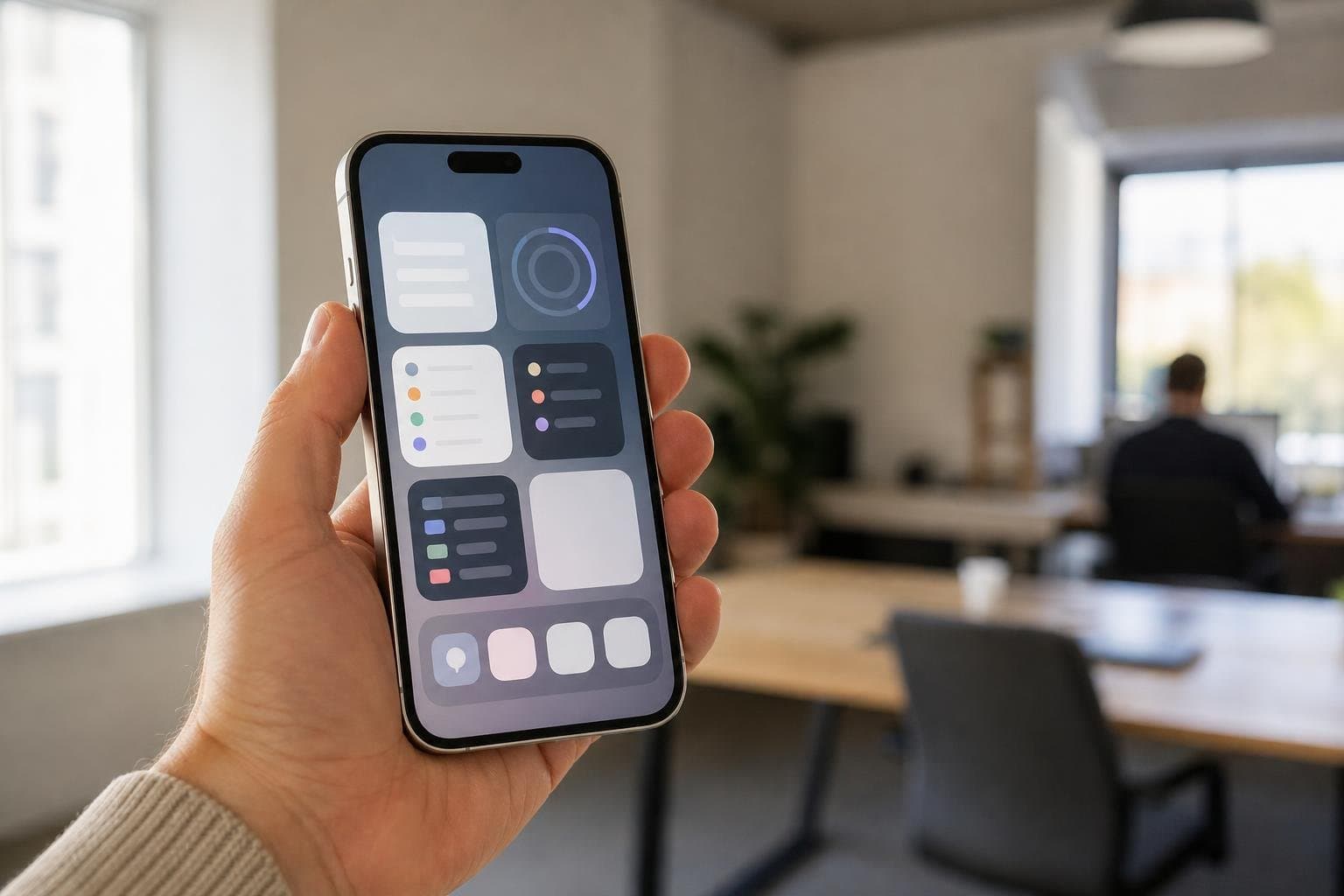
Unlocking your phone to check an agenda or complete a chore often leads straight into social feeds, message notifications, and unexpected distractions. Setting up lock screen widgets for productivity solves this friction by bringing your essential schedule, habits, and tasks directly to your glanceable screen. We will walk you through how to configure minimal, actionable setups so you can check your status and put the phone down immediately.
Why Glanceable Productivity Outperforms Full App Immersion
Every time you unlock your smartphone, you encounter a gauntlet of red notification badges, banners, and algorithmic feeds. Studies on cognitive friction demonstrate that context switching steals up to twenty minutes of productive attention after each interruption. When your sole objective is checking whether you finished your morning water intake or what meeting comes next, an unlock invites unnecessary peril.
Lock screen widgets remove the unlock requirement entirely. They transform your lock display from a passive billboard into a disciplined cockpit. By rendering only current priorities, they allow you to verify progress in less than two seconds, keeping your working memory anchored on the task at hand rather than wandering through unrelated apps.
The Anatomy of a High-Output Lock Screen Layout
Apple provides two primary zones for lock screen widgets: the inline slot above the digital clock and the rectangular or circular slots beneath it. Designing an effective layout requires prioritizing high-value information over decorative accents.
The Inline Banner (Above the Clock)
The inline slot is best reserved for single-line text data that shifts predictably throughout the day. A simple date format is a wasted opportunity; instead, use this space for your current primary milestone, next scheduled appointment time, or your single top priority for the morning.
The Sub-Clock Grid (Below the Clock)
The area beneath the time holds up to four small circular widgets, two rectangular widgets, or a hybrid combination. To maintain peak efficiency, divide this space between progress tracking and active work sessions:
- Circular Slots: Ideal for binary habit toggles, completion rings, or battery levels of critical hardware like your Apple Watch.
- Rectangular Slots: Best suited for upcoming calendar events, next-in-line to-do list items, or a running focus counter.
By matching the widget format to the type of information, you avoid visual clutter while ensuring every glance provides immediate direction.
Comparing Lock Screen Widget Configurations by Daily Objective
No single widget layout fits every professional or student. Your setup should mirror the demands of your workflow, whether you need deep creative blocks or rapid operational task clearing.
| Focus Objective | Inline Widget Slot | Sub-Clock Primary (Rectangular) | Sub-Clock Secondary (Circular) | Primary Workflow Benefit |
|---|---|---|---|---|
| Deep Work & Time Boxing | Next focus milestone | Active session timer or Live Activity | Goal completion ring | Prevents context drift during multi-hour work blocks |
| Daily Task Execution | Next immediate checklist item | High-priority task summary | Habit checkoff toggle | Allows rapid review without entering apps |
| Health & Routine Building | Daily streak counter | Routine step overview | Hydration or movement log | Promotes discipline across repetitive daily rituals |
| Executive & Meeting Flow | Today's timeline | Next meeting time and room | Unread alert indicator | Keeps fast-paced schedules on track between rooms |
Selecting your profile from the table above prevents widget overload. Once you define your primary goal for the day, pair it with corresponding Focus Modes to switch layouts automatically as your day advances.
Managing Focus Sessions with Real-Time Widgets
Static widgets provide snapshots of information, but active deep work demands continuous feedback. Dynamic widgets and Live Activities bridge this gap by displaying elapsed and remaining intervals as you work.
When you start a session, an active countdown on your lock display reinforces your commitment. If you are curious about how dynamic timers display on modern Apple hardware, explore our guide on the pomodoro timer with dynamic island support. A glance reassures you that the clock is ticking, eliminating the urge to unlock your device to check how many minutes remain. Once the interval expires, you can immediately review your next steps or close out the cycle cleanly.
Connecting Lock Screen Glances to Homescreen Routines
While lock screen widgets excel at quick data checks, deeper task organization sometimes requires a broader canvas. This is where combining lock screen widgets with homescreen widgets creates a seamless workflow across your entire day.
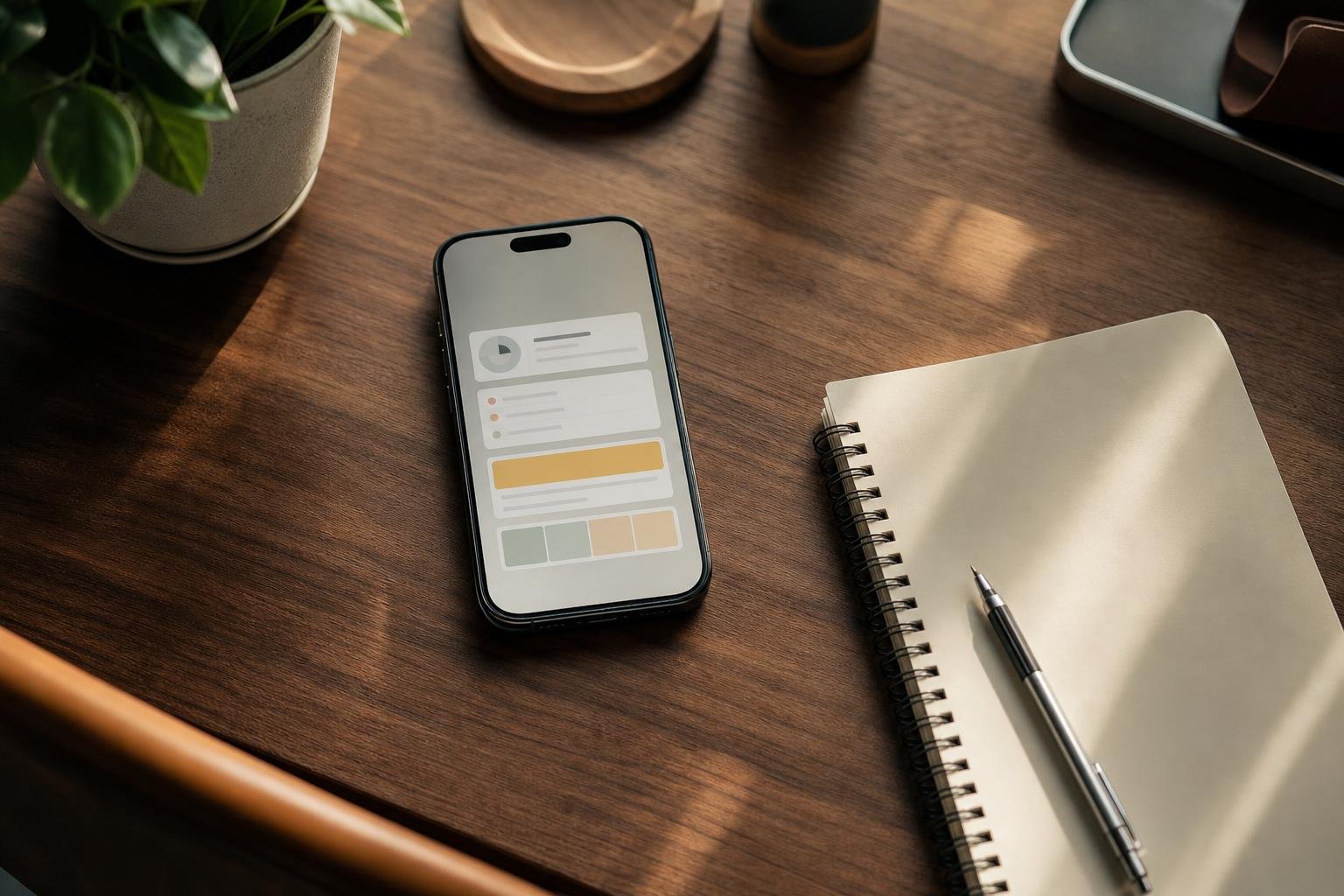
Use your lock screen for lightweight awareness: the next task to tackle, habit completion tallies, and your active timer. Then, place interactive widgets on your primary home page for broader oversight, such as managing a full recurring daily checklist with reminders. This division of labor keeps your entry screen clean and actionable while reserving comprehensive habit lists and project hierarchies for intentional work periods.
When your tools sync effortlessly across your iPhone, Apple Watch, and desktop, you never duplicate effort. You check an item off your wrist or glance at your phone screen, and your overarching progress updates automatically across every device you use.
How to Build a Clutter-Free Lock Screen Step-by-Step
Configuring your interface takes only a few minutes. Follow these steps to set up a disciplined screen that protects your attention:
- Enter Edit Mode: Wake your iPhone, press and hold the lock screen, then tap Customize at the bottom of the display.
- Select the Lock Screen: Tap the Lock Screen preview on the left side of the pairing screen.
- Set the Inline Slot: Tap the bar above the clock. Select an app that supplies immediate context, such as a single habit streak or your next scheduled event.
- Populate the Widget Tray: Tap the rectangular frame beneath the clock. Select up to four small widgets or two rectangular widgets that represent your core daily targets.
- Link to a Focus Mode: Tap the Focus button at the bottom of your lock screen wallpaper gallery to tie this specific layout to your Work or Personal Focus. This ensures your productivity layout appears only when you need it.
Test your layout for two days. If you find yourself tapping a widget simply out of boredom, remove it. Every element on this screen must justify its presence by saving you time or keeping you focused.
Frequently asked questions
Can I mark tasks complete directly from the lock screen?
Yes. Interactive widgets introduced in modern iOS versions permit direct interaction without opening the target application. You can toggle habit completions, complete simple check items, or pause active focus sessions straight from the lock display.
Do productivity widgets drain the iPhone battery quickly?
No. Lock screen widgets run on lightweight system budgets designed to refresh only when triggered by timeline updates or user interactions. They consume negligible battery compared to repeatedly unlocking your phone and browsing full applications.
How do I switch widgets automatically between work hours and evening routines?
You can link distinct lock screens to dedicated Apple Focus Modes such as Work, Personal, or Sleep. When your Focus Mode triggers via schedule or location, your lock screen and its associated widgets switch automatically to match your current routine.
What is the difference between lock screen widgets and homescreen widgets?
Lock screen widgets are compact, monochromatic utilities designed for rapid glanceability before you unlock your device. Homescreen widgets offer larger dimensions, richer colors, and broader layouts capable of displaying extensive lists, detailed charts, and complex habit patterns.
 Download on the App Store