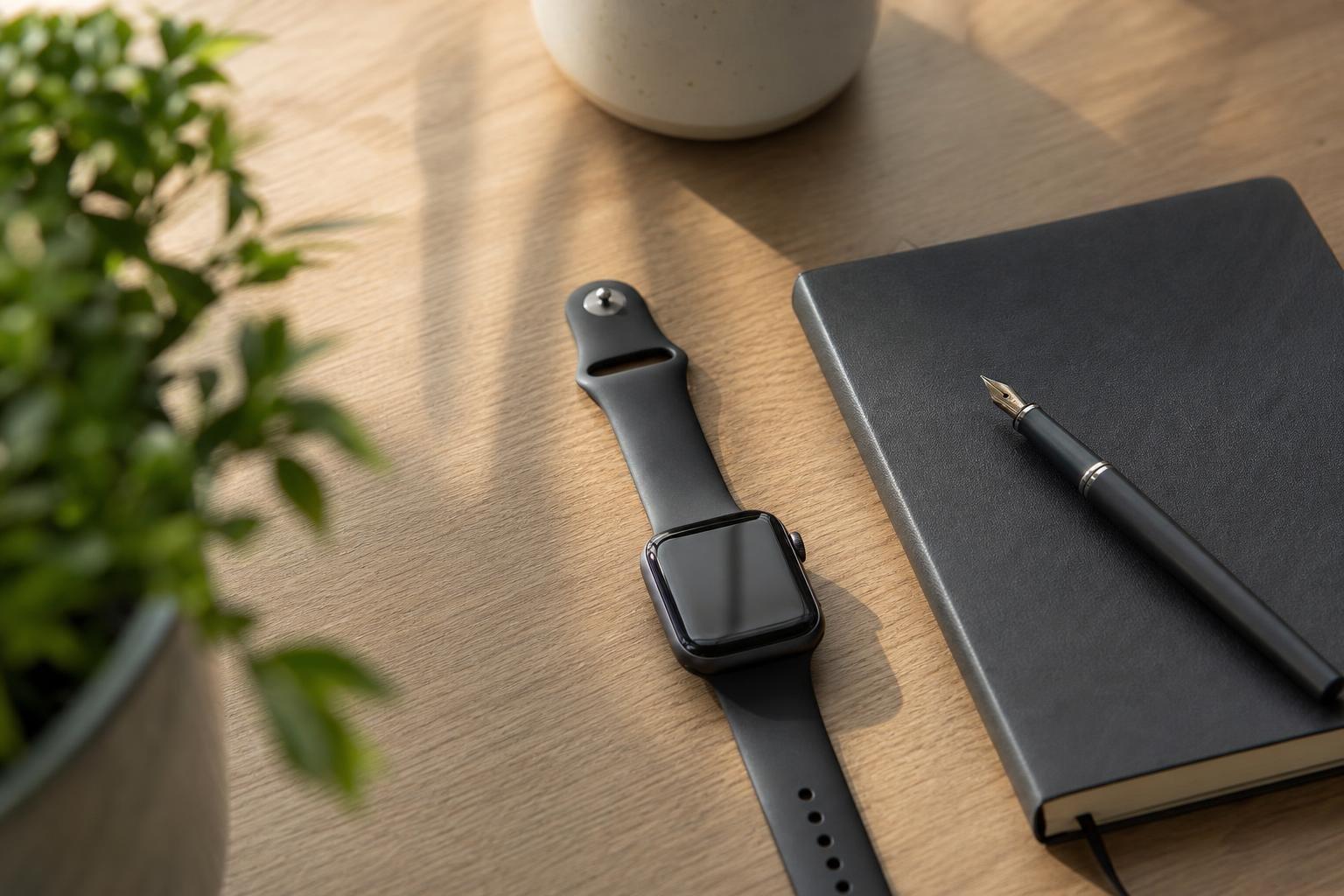
Using a dedicated time tracking app for apple watch gives you complete control over your daily schedule without picking up your phone. You can log tasks, check active work sessions, and keep your attention where it belongs with a quick glance at your wrist. We design tools at Tupp to help you eliminate unnecessary screen interactions while maintaining steady discipline throughout your day.
Why Wrist-Based Time Tracking Changes Your Focus
Reaching for your phone to check a timer often introduces friction. A quick glance to see how many minutes remain in a sprint can easily lead to clearing unread notifications, checking email, or opening social feeds. Moving your active tracking to your wrist breaks that cycle.
When you wear your tracking tool, you can put the phone down and protect focus. Starting, pausing, or completing a session requires only a single tap on your watch face. This small shift creates an environment where you stay immersed in the task at hand rather than wrestling with digital distractions.
For remote professionals and busy teams, wrist tracking simplifies daily routines. When you manage your work sessions from your wrist, you can also explore our guide on how to maintain daily discipline working remotely to keep your schedule consistent across the entire week.
How watchOS Keeps Your Timers and Complications Synchronized
Modern watchOS versions offer refined frameworks that keep your time logs accurate without draining your battery. Understanding how your watch handles background tasks ensures you choose an app that performs reliably during long workdays.
Complication Refresh Limits and Battery Management
Apple manages background updates strictly so your device lasts throughout the day. According to Apple Developer documentation, apps with an active complication on the watch face can safely schedule up to four background refresh tasks per hour, with up to 4 seconds of CPU processing time granted over 15 seconds of elapsed real time. Furthermore, Apple guidelines advise building modern watchOS complications using WidgetKit, as noted in the Apple Developer guidelines, because the legacy ClockKit complication framework has been deprecated for new development.
Live Activities in the Smart Stack
Starting in watchOS 11, Live Activities initiated from an iPhone running iOS 18 automatically appear in the Apple Watch Smart Stack to show real-time progress for activities such as timers and focus sessions. This integration allows your wrist to reflect live data instantly. According to Apple documentation, the Apple Watch Smart Stack can automatically open on the wrist when a Live Activity starts and remain visible when the wearer lowers their wrist.
Developers can also optimize this layout. As outlined in the Apple Developer guidelines, developers can adapt iOS Live Activities specifically for the Apple Watch Smart Stack layout using the small supplemental activity family modifier. If you already use dynamic tracking on your handheld device, our focus timer utilizes Live Activity integration across the Dynamic Island, lock screen, and Apple Watch to ensure seamless transitions.
Tracking Modes Compared: Watch Face, Smart Stack, and Direct Apps
Depending on how you work, you may prefer glanceable progress bars on your watch face, real-time widget stacks, or fully independent on-wrist apps. Each approach fits different working environments.
| Interface Method | Best Suited For | Primary Benefit | Interaction Style |
|---|---|---|---|
| Watch Face Complication | Quick glance checks | Constant visibility on dial | Tap complication to open |
| Smart Stack Live Activity | Active focus sprints | Opens automatically on session start | Swipe crown or double tap |
| Full watchOS App | Deep task organization | Complete category and log management | Full touch navigation |
| Standalone Background Timer | Offline or phone-free sessions | Runs without iPhone nearby | Haptic alert on completion |
The Apple Watch user guide notes that users can open the Smart Stack and navigate through its widgets hands-free from the watch face using the double tap gesture. This allows you to check active session time without interrupting typing or physical tasks.
Structuring Your Daily Sessions With Apple Focus Filters
A complete time tracking workflow coordinates with your device settings to silence alerts while you work. By pairing time tracking with custom Focus modes like Deep Work or Writing, you set strict boundaries around your attention.
Under the hood, Apple Developer documentation states that apps can use App Intents and Focus filters to adjust app behaviors and filter incoming notifications dynamically when a device switches Focus modes. When you start a session, your watch can mute non-critical pings, change to a minimalist watch face, and display your active timer directly.
To learn more about structuring periods of work and rest so you do not deplete your energy, read our breakdown on how to track focus time effectively.
Integrating Habit Tracking and Daily Routines on Your Wrist
Tracking hours is only half the battle; maintaining consistency across consecutive days completes the picture. Pairing your time logs with habits and routines creates a full overview of your personal output.
At Tupp, we support individuals and teams with integrated tools including time tracking, habit tracking, daily checklists, and routine scheduling. When a project wraps up, you can check off related daily tasks or review your current streaks without opening an extra app. If you manage larger projects or coordinate several contributors, check out Tupp for Teams for administrative controls and shared activity libraries.
To build a steady rhythm that balances fixed working blocks with recurrent duties, review our practical guide on how to build a daily routine that sticks.
How to Pick the Right Time Tracking App for Your Needs
When choosing an application for your Apple Watch, look closely at how it handles cross-device syncing, haptic feedback, and complications. A well-designed wrist app should feel lightweight rather than cluttered.
- Confirm WidgetKit complication support so your watch face updates cleanly.
- Ensure cross-device synchronization keeps your iPhone, watch, and desktop records aligned.
- Look for tactile haptic chimes that signal the end of a sprint without loud noises.
- Check whether the app functions standalone when you leave your iPhone in another room.
Our focus timer integrates smoothly into your daily flow by connecting your wrist, phone, and web dashboard, so you can track intervals cleanly without ever losing momentum.
Frequently asked questions
Can I track time on my Apple Watch without my iPhone nearby?
Yes. Standalone watchOS applications can log sessions and run countdowns independently on your wrist. Once your Apple Watch reconnects to your iPhone or Wi-Fi network, your completed sessions sync automatically to your main account.
Does running a time tracking complication drain the Apple Watch battery?
Modern complications built with WidgetKit use very little power. Because watchOS restricts background refreshes to budgeted intervals, keeping a time tracking complication visible on your dial will not noticeably reduce standard daily battery life.
How do Live Activities appear on Apple Watch during a focus session?
In watchOS 11, any active Live Activity started on an iPhone running iOS 18 displays directly at the top of your Smart Stack. It can open automatically when raised, letting you view progress without opening the full application.
Can I use time tracking on Apple Watch for billable client hours?
Yes. Many professionals start and stop client tasks directly from complications on their wrist. The recorded intervals sync to connected project boards and reports for clear invoicing and review.
Sources
- Keeping your complications up to date | Apple Developer Documentation
- Complications | Apple Developer Documentation
- See timely widgets in the Smart Stack on Apple Watch - Apple Support
- watchOS 11: Smart Stack Gains Live Activities and Suggested Widgets - MacRumors
- Bring your Live Activity to Apple Watch – WWDCNotes
- App Intents | Apple Developer Documentation
 Download on the App Store